Sync Metafield Data with External Systems
By syncing metafield data with external services, you can maximize the value of your Shopify customer data across other platforms and tools.
In this best-practice guide, we’ll walk through how to build the following setup using AL CustomerMetaSync:
- When a customer submits a birthday value, send that birthday data to another service
For this example, we will use LoyaltyLion — a loyalty and rewards platform commonly used for customer points programs.
Step 1: Create the birthday metafield
Shopify provides a standard metafield definition for customer birthdays.
For details, see
List of standard metafield definitions.
Note: Even if you have not manually created a birthday metafield using Shopify Forms, it may still exist — this is because Shopify automatically uses the standard birthday metafield.
If the standard birthday metafield has not yet been created, AL CustomerMetaSync will display a banner on the home screen prompting you to create it.
Click Create standard birthday metafield to add the metafield definition.
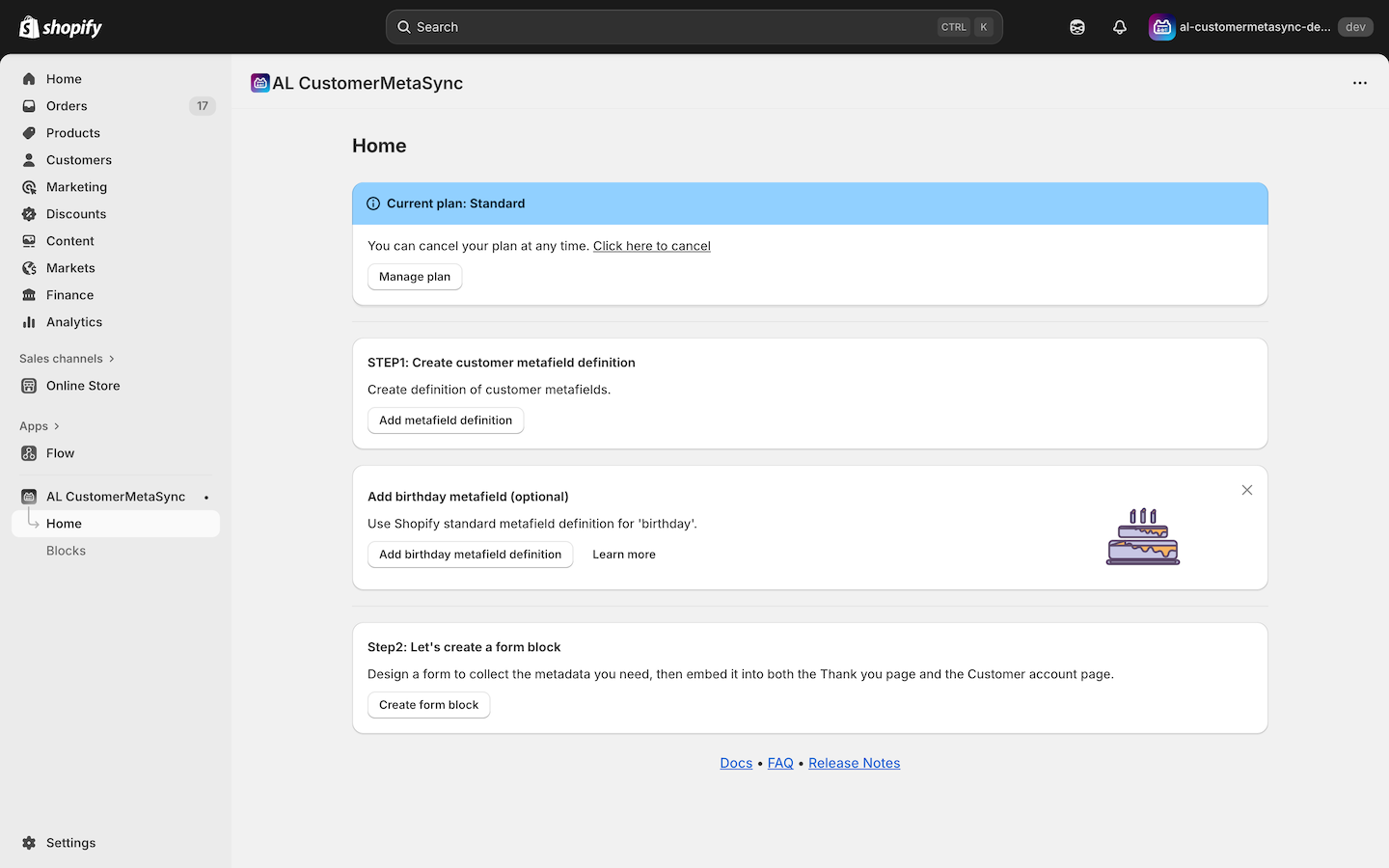
Step 2: Create a form block
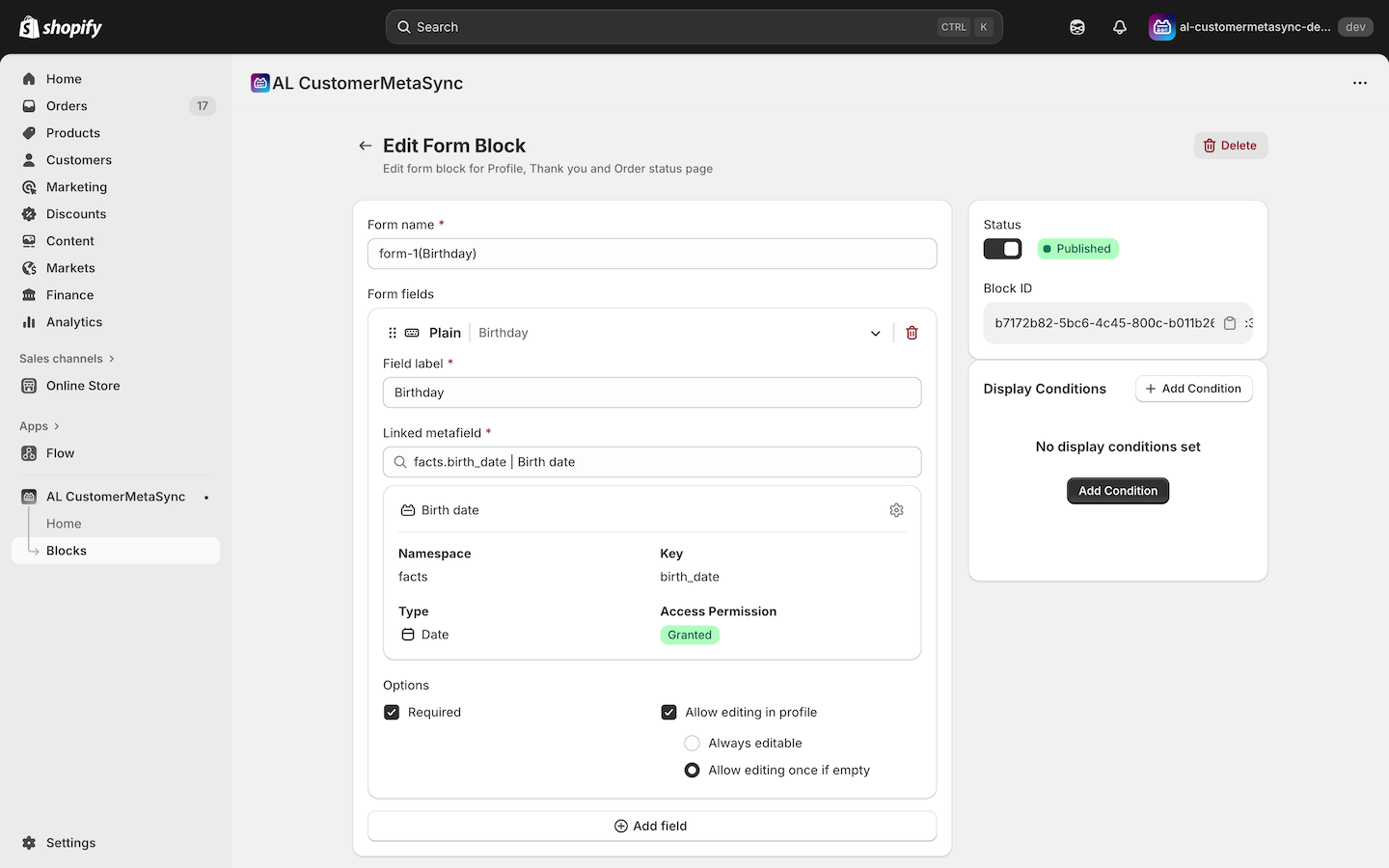
In the AL CustomerMetaSync admin, create a form block with:
- A single field for Birthday
Since birthdays normally do not change, we recommend enabling:
Options > Edit permission → Allow editing once if empty
This ensures the value is only submitted the first time.
Step 3: Add the form to your storefront
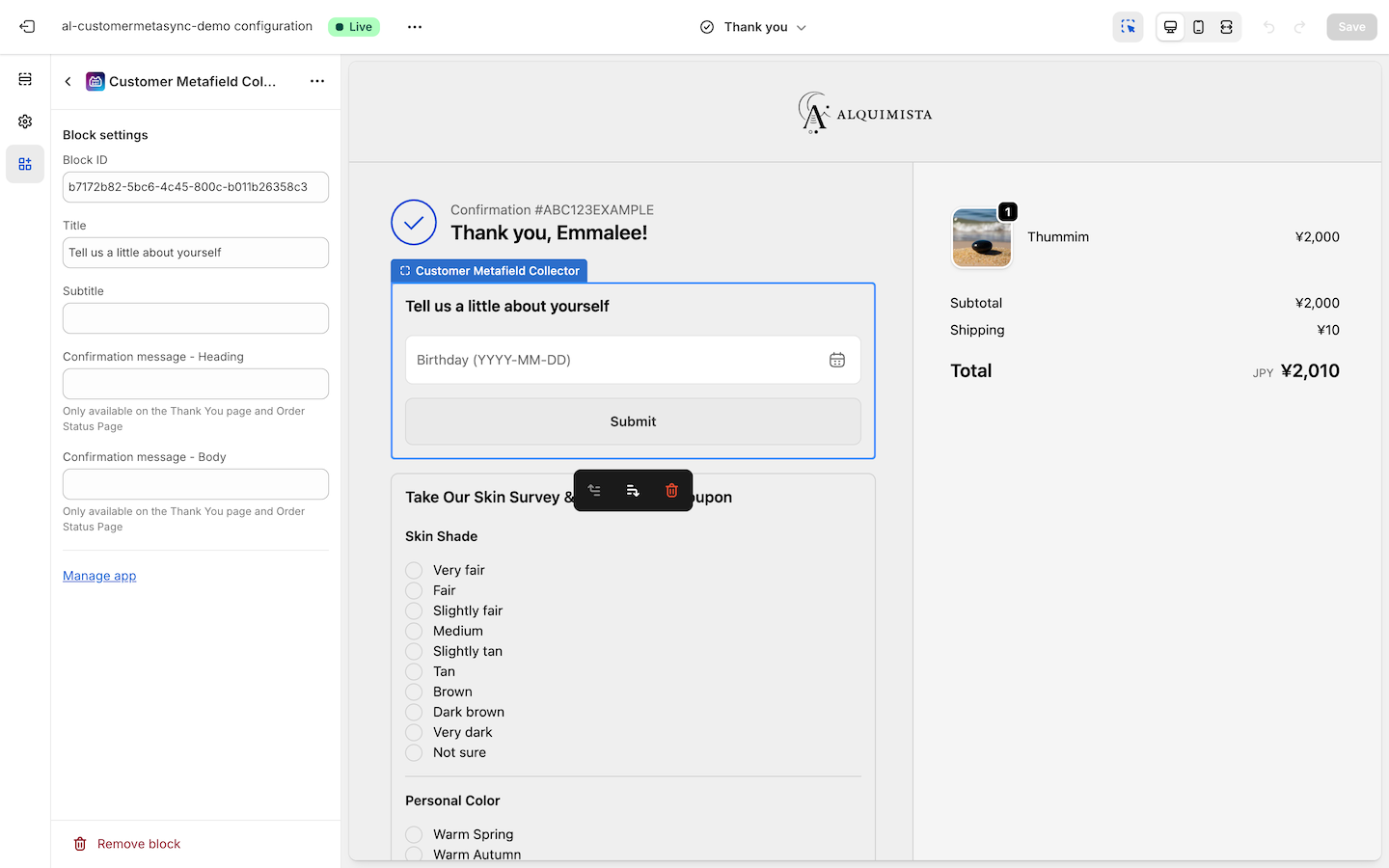
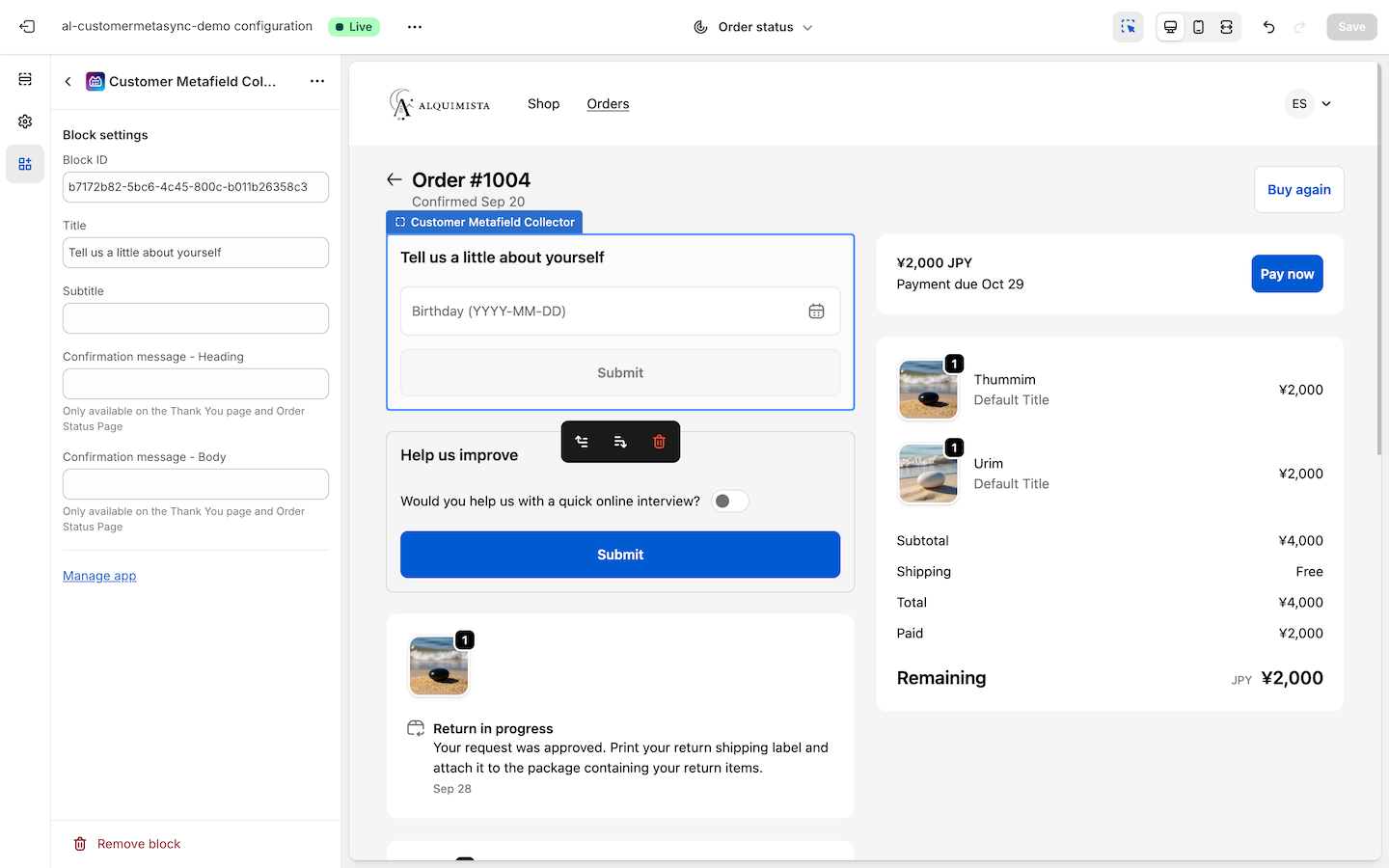
Place the form on any of the following pages as needed:
- Thank You page
- Order Status page
- Profile page
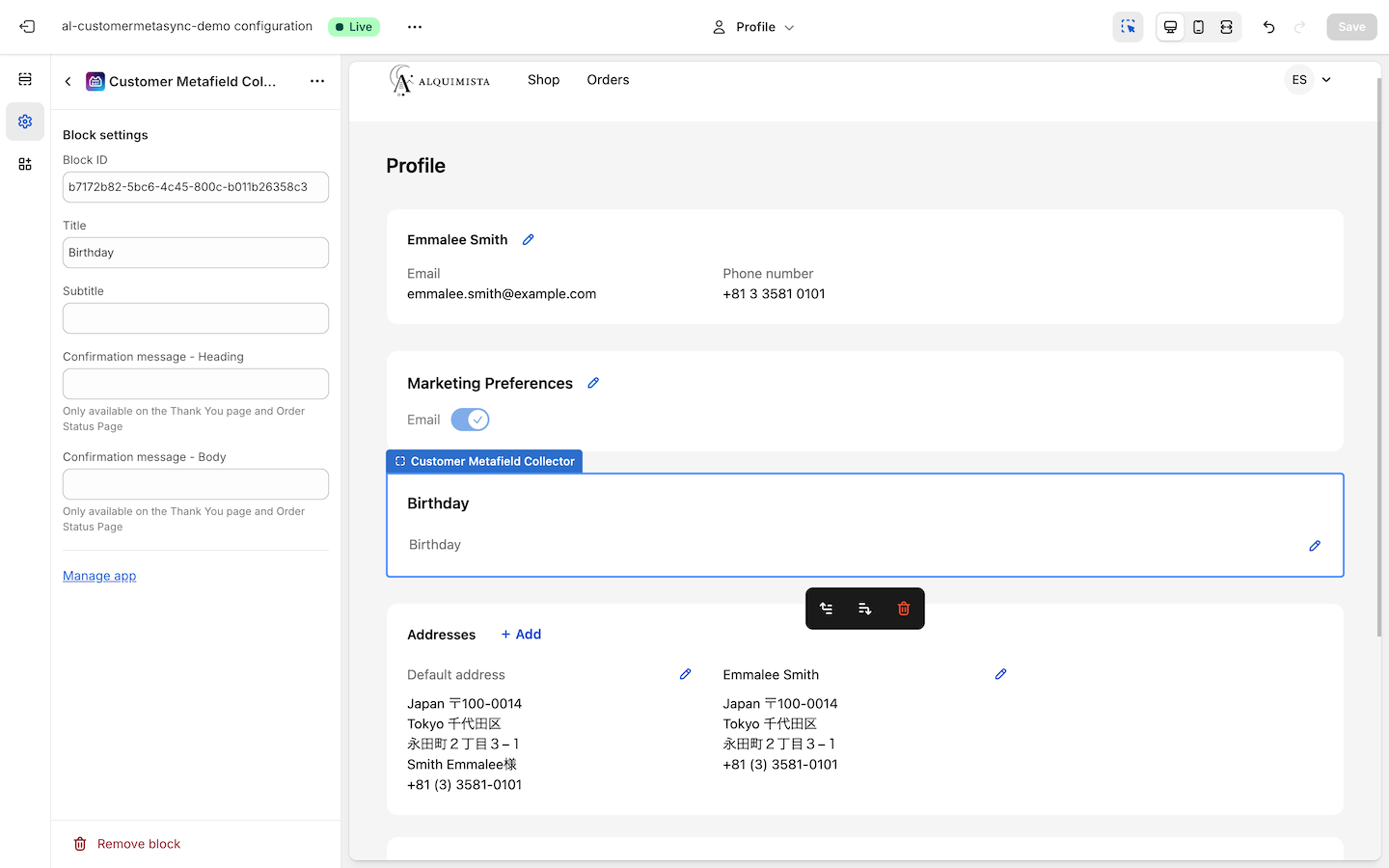
Step 4: Send submitted birthday data to LoyaltyLion via Shopify Flow
When a birthday is submitted from the Profile, Thank You, or Order Status page,
AL CustomerMetaSync can trigger Shopify Flow.
We’ll configure a Flow automation that:
Sends the submitted birthday value to LoyaltyLion
The Flow configuration looks like this:
-
Trigger
- Customer Metafield Submitted on Profile Page
- Customer Metafield Submitted on Thank You Page
- Customer Metafield Submitted on Order Status Page
-
Condition
Filter by the relevant Form Block ID -
Condition
Check that the LoyaltyLion birthday value is blank or does not exist -
Action
Use Log output to review the submitted value (optional but helpful for debugging) -
Action
Use Send HTTP request to send the value to the LoyaltyLion API endpoint -
Condition
Validate whether LoyaltyLion returned anokstatus -
Action
If the request fails, use Send internal email to notify the administrator
Reference images:
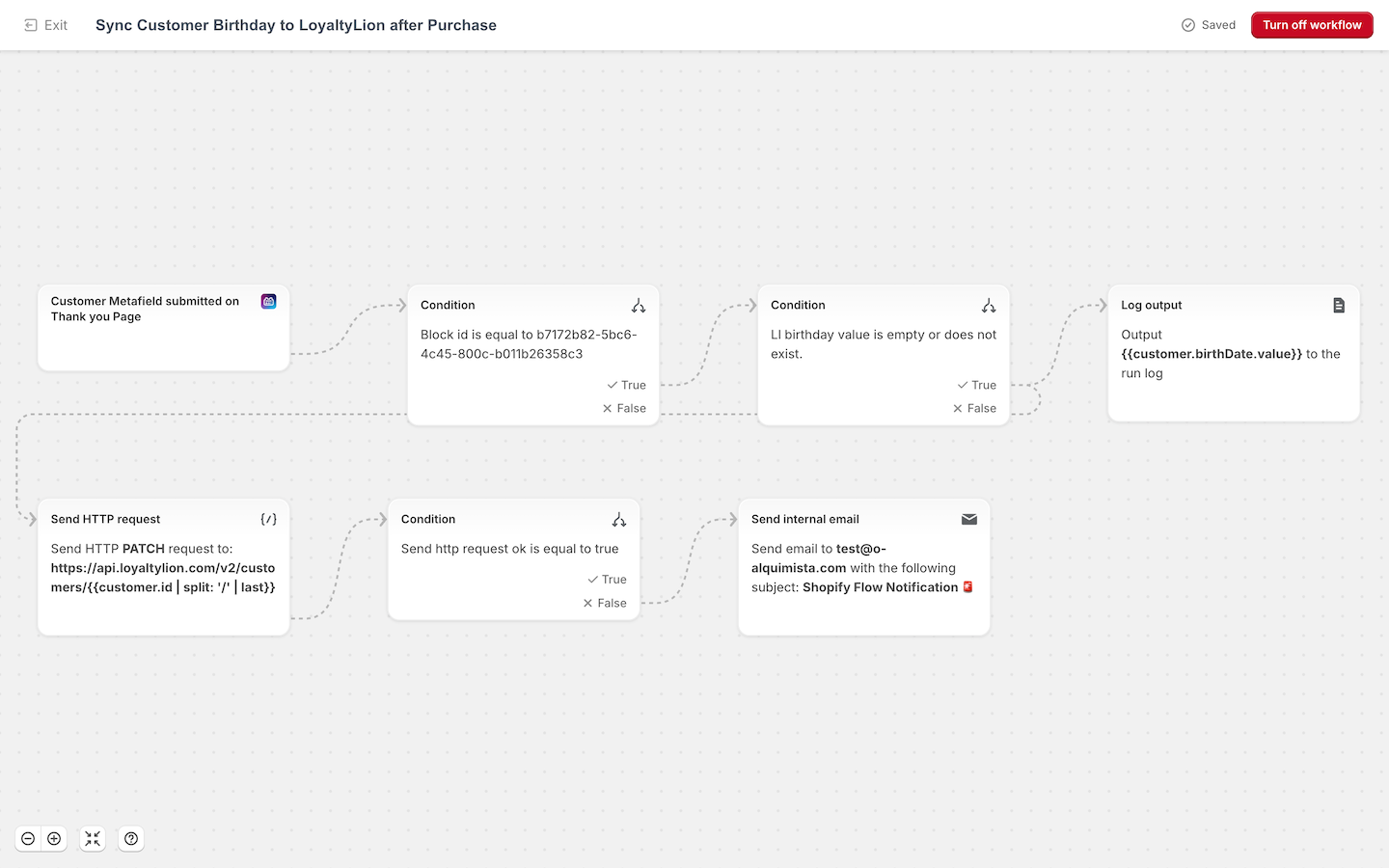
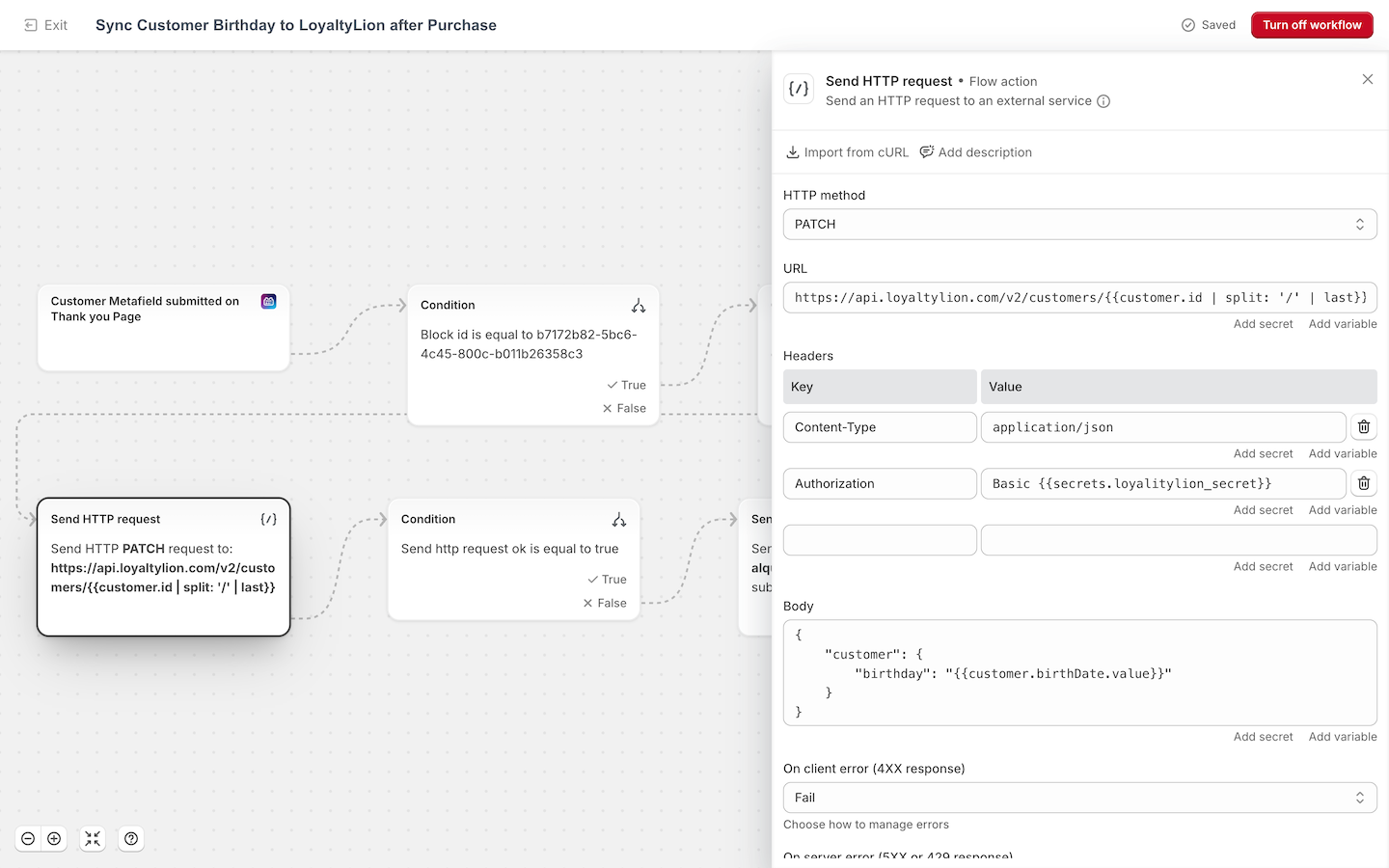
Explanation of key steps
1️⃣ The trigger is configured on all pages where birthday submission is possible, so the Flow runs regardless of where the form is submitted. The example above shows the Thank You page trigger.
2️⃣ The Block ID condition ensures the Flow runs only for the intended form block.
3️⃣ LoyaltyLion automatically syncs birthday values back to Shopify using the metafield
loyaltylion.birthday.
This condition checks whether a birthday already exists to avoid overwriting a previously registered value.
4️⃣ The Log output step is used to verify submitted metafield values if an error occurs.
This step is optional.
5️⃣ Birthday data is sent using LoyaltyLion’s Update Customer API.
An API key must be created in advance.
See: Create an API key
⚠️ This step involves technical implementation and may require engineering knowledge.
If you need support, please feel free to contact us.
6️⃣ The Flow checks the response returned by LoyaltyLion to confirm whether processing succeeded.
7️⃣ If the response indicates failure, Send internal email is used to notify the store operator or admin.
This integration allows you to synchronize customer birthday data across systems, ensuring consistent customer information between Shopify and LoyaltyLion.