Set Up the Onboarding Form and Collect Customer Information
This page explains how to configure the Onboarding Form in AL CustomerMetaSync and collect customer information when customers log in for the first time with new customer accounts.
With one-time passcode (OTP) login, detailed customer profile data is not collected by default. By using AL CustomerMetaSync, you can collect not only Shopify standard fields such as first name, last name, phone number, and SMS marketing consent status, but also metafield values such as birthday, gender, and privacy policy agreement.
This makes it possible to keep a flexible operation model similar to traditional customer accounts even after moving to new customer accounts.
Step 1: Create an Onboarding Form
Open the onboarding form screen in the app admin.
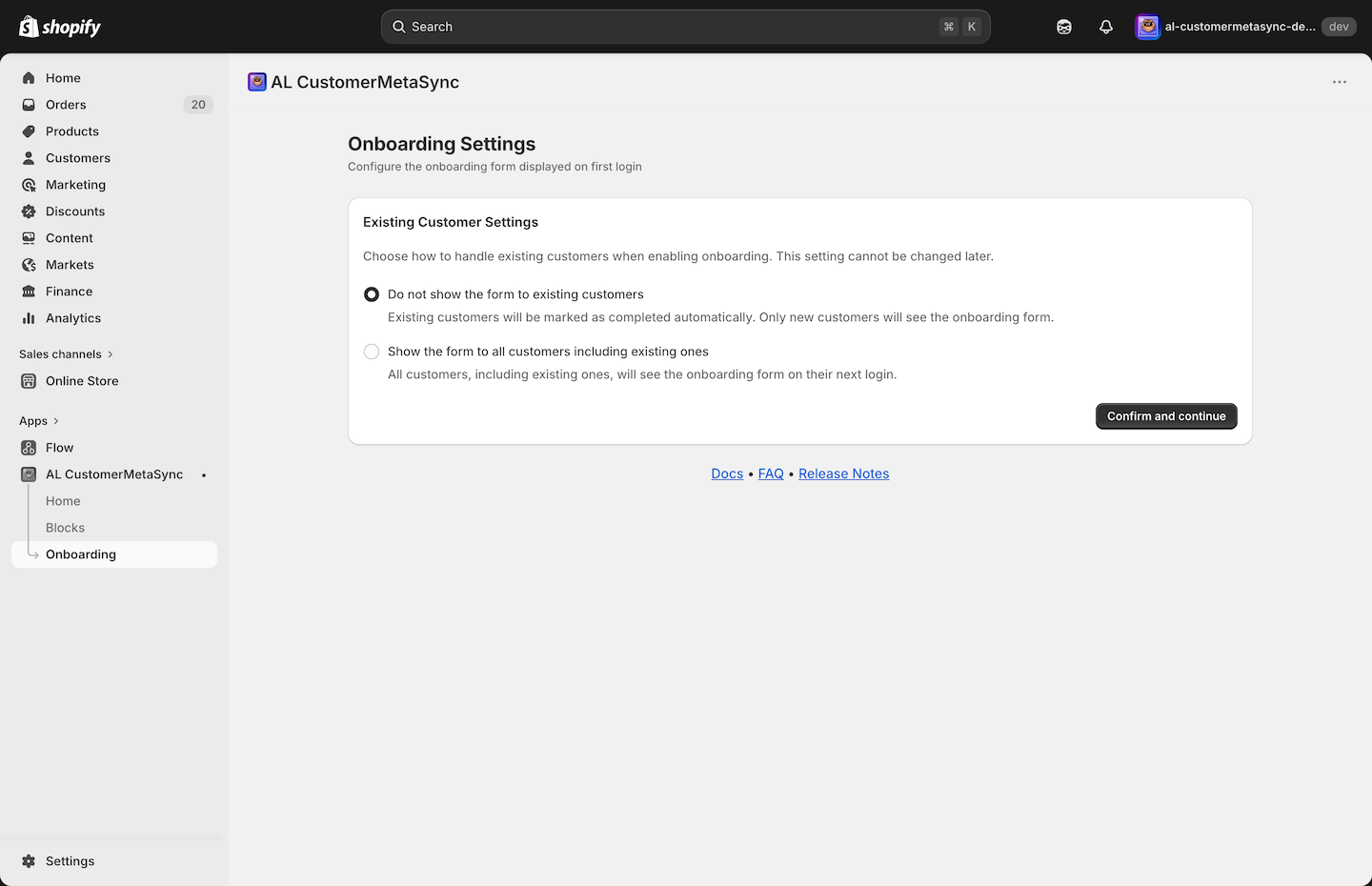
If you have not created an onboarding form yet, choose one of the two options below:
- Do not show the form to existing customers
- Show the forms to all customers including existing ones.
If you choose to show the form to existing customers, the form will appear at their next login. However, customers who already have all required values will not see the form.
This option is useful when migrating from another platform and some customer records are partially missing, or when a full name exists in a single field and you want customers to re-enter it correctly into separate first-name and last-name fields.
Step 2: Configure the Form Content
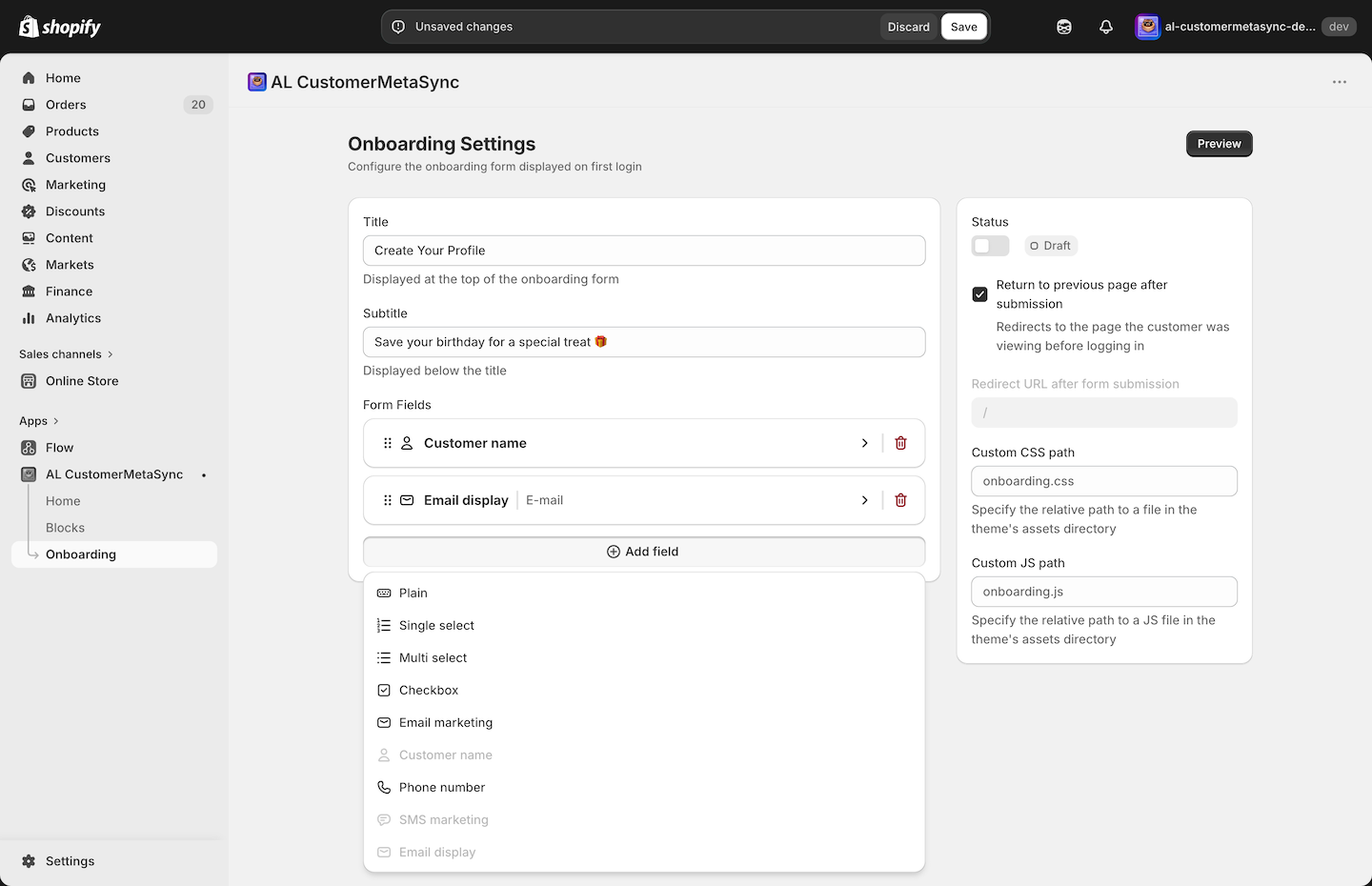
Select the fields you want to show in the onboarding form, and adjust the title and description as needed.
The settings on this screen define what customers will see right after first login.
Step 3: Save and Apply the Settings
Save your settings to complete the onboarding form setup.
After saving, make sure the settings are enabled.
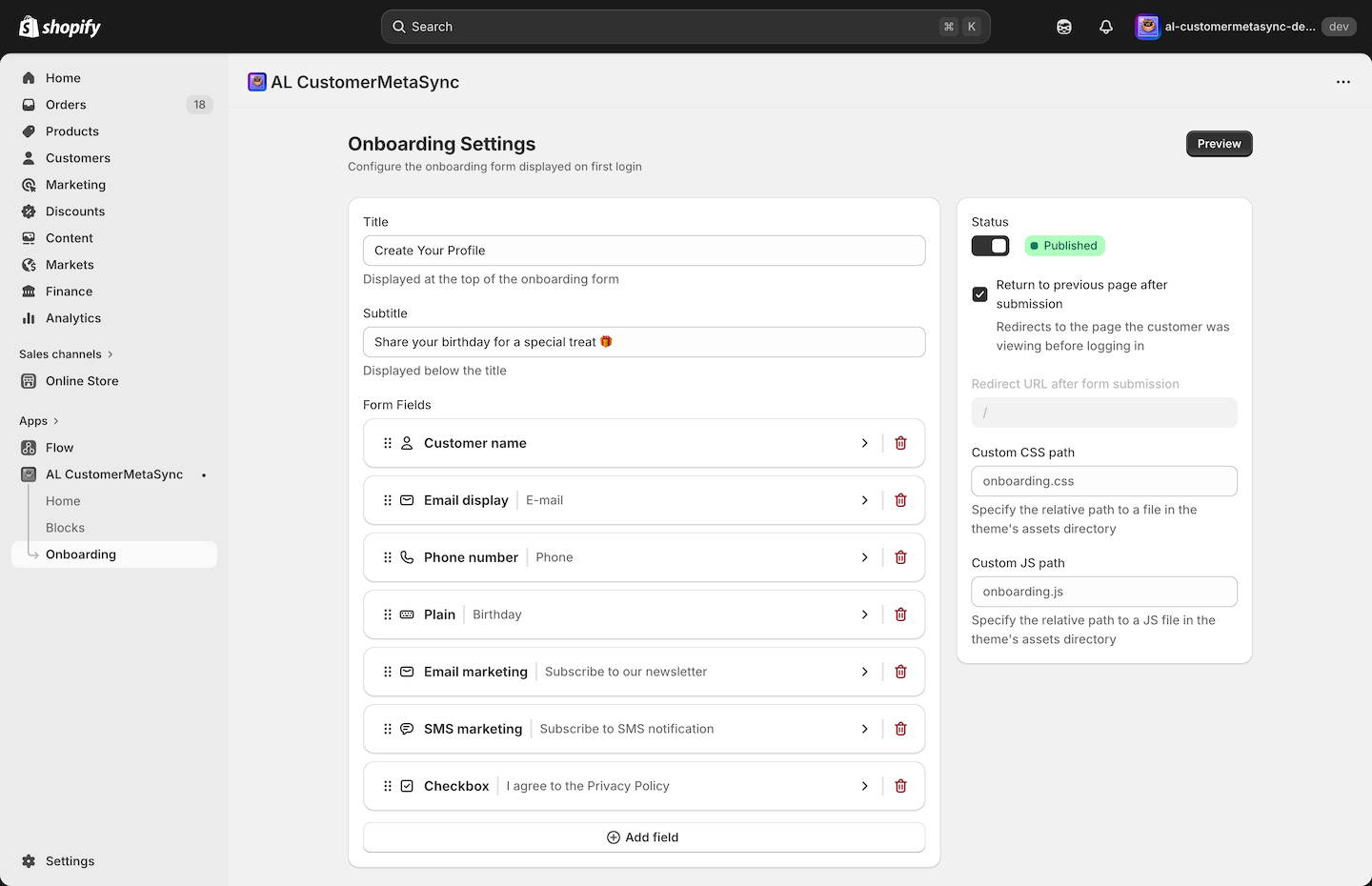
If you enable Return to previous page after submission, customers will be taken back to the page they were viewing before login after submitting the onboarding form.
This helps avoid interrupting the customer purchase experience.
If you disable Return to previous page after submission, you can send customers to any page you want after submission. For example, if you use a LINE integration app and want to increase the connection rate, redirecting customers to the profile page is one possible idea.
💻 For Developers
In the AL CustomerMetaSync onboarding form, you can adjust UI and validation behavior by creating CSS and JS files with specific file names under your theme's assets directory.
Step 4: Enable App embeds in the Theme Editor
From Shopify admin, open Online Store > Themes > Customize, then enable AL CustomerMetaSync under App embeds.
⚠️ If this is not enabled, the onboarding form will not appear right after OTP login.
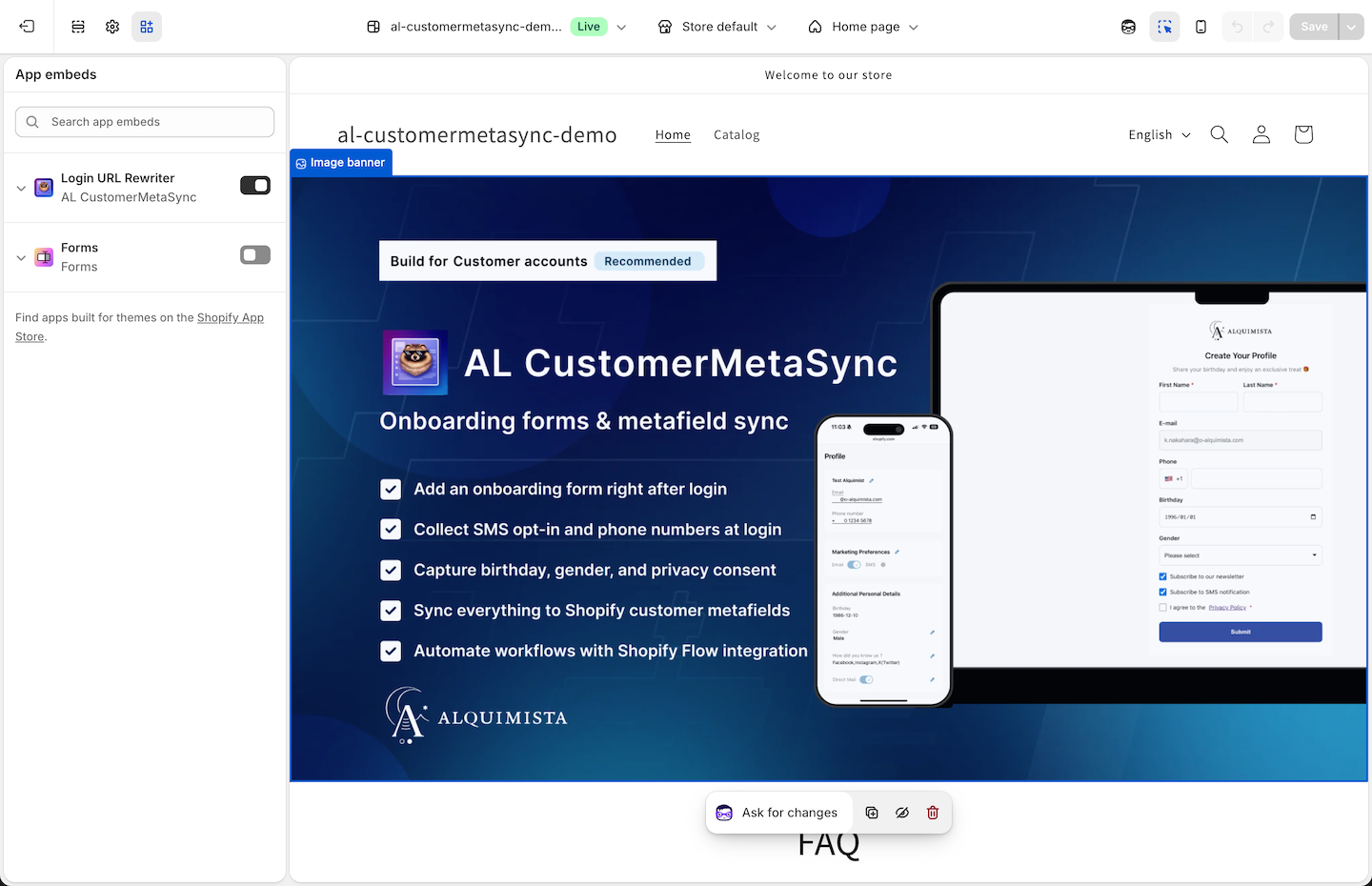
If the onboarding form still does not appear after enabling App embeds, there are two likely reasons:
- The app is not compatible with your current theme.
- Your login-related theme code is customized, so the app cannot override login behavior.
For case 1, first check your login-related code. Most major Shopify themes are set up as described in the official guide Add a customer login link to your theme. Changing your code to follow the guide helps AL CustomerMetaSync work correctly.
If editing the code is difficult, contact us from the app page. We can also support code adjustments.
For case 2, either update your customized code as described in case 1, or use Shopify's standard Customer sign-in links and redirects feature.
First, find the code for your login button. After finding the target code, rewrite it as follows:
<a href="/customer_authentication/login?locale={{ localization.language.iso_code }}&return_to={{ "/apps/al-customermetasync/onboarding" | url_encode }}">
If Redirect URL after form submission is configured in the app, this change will send customers to the page configured in AL CustomerMetaSync after they submit the onboarding form.
Step 5: Confirm the Form Display After First Login
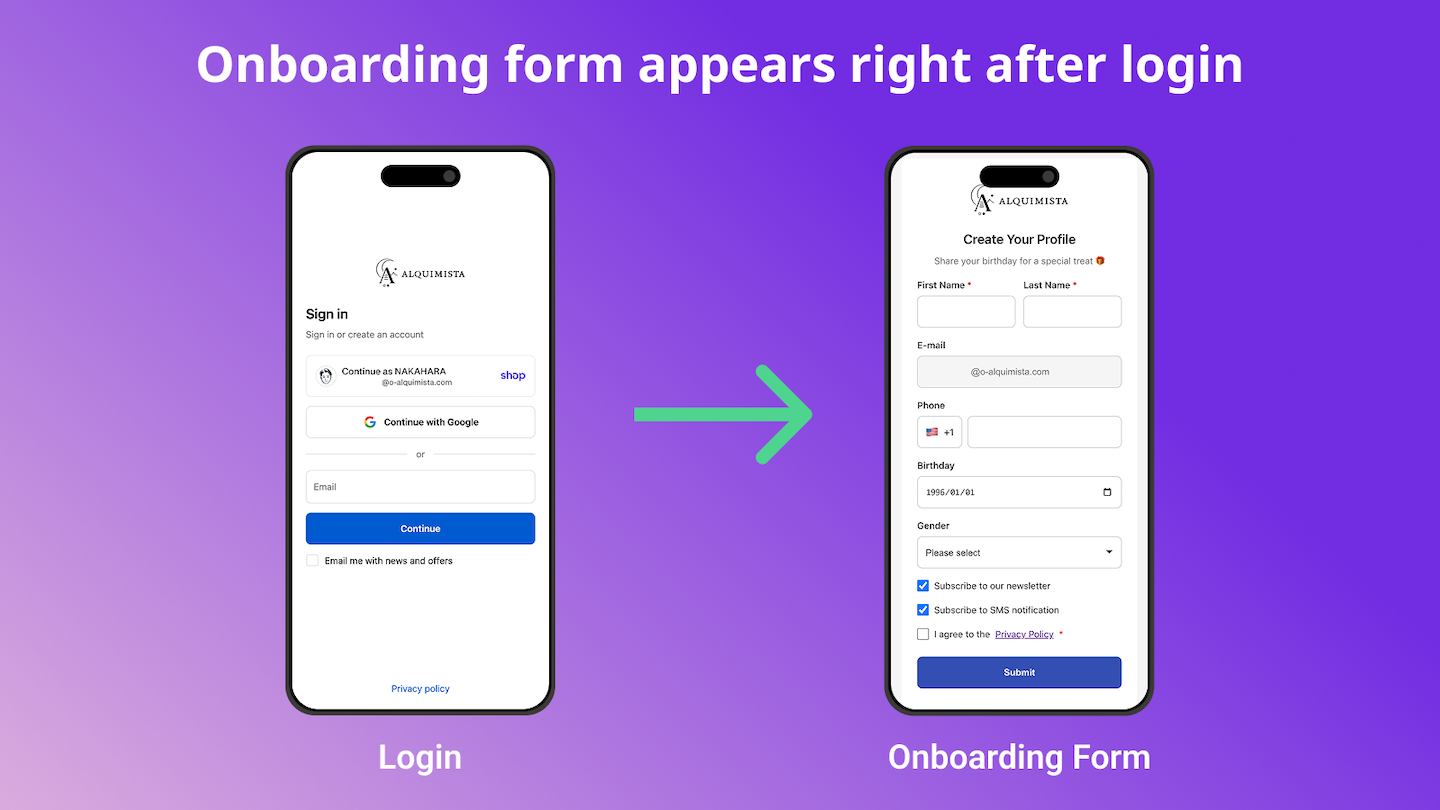
Log in with a new customer account and verify that the onboarding form appears after OTP authentication.
Submitted values are saved to the configured metafields.
Notes
- Fields that already have values are not displayed in the onboarding form.
- Even if a customer has never submitted the onboarding form, the form is skipped when all target fields are already filled through migration or other touchpoints.
- To automate post-submission actions, combine this setup with Shopify Flow integration.