Convert Customer Metafields into Barcodes and QR Codes
This page explains how to use customer metafields and convert its value into barcodes and QR codes.
By storing an external reference ID in a customer metafield and converting it into a barcode or QR code, you can expand use cases beyond Shopify POS and make the data compatible with other POS systems as well.
Define the customer metafield
First, create a metafield definition for the value you want to reference.
(If a definition already exists, you may skip this step.)
Go to
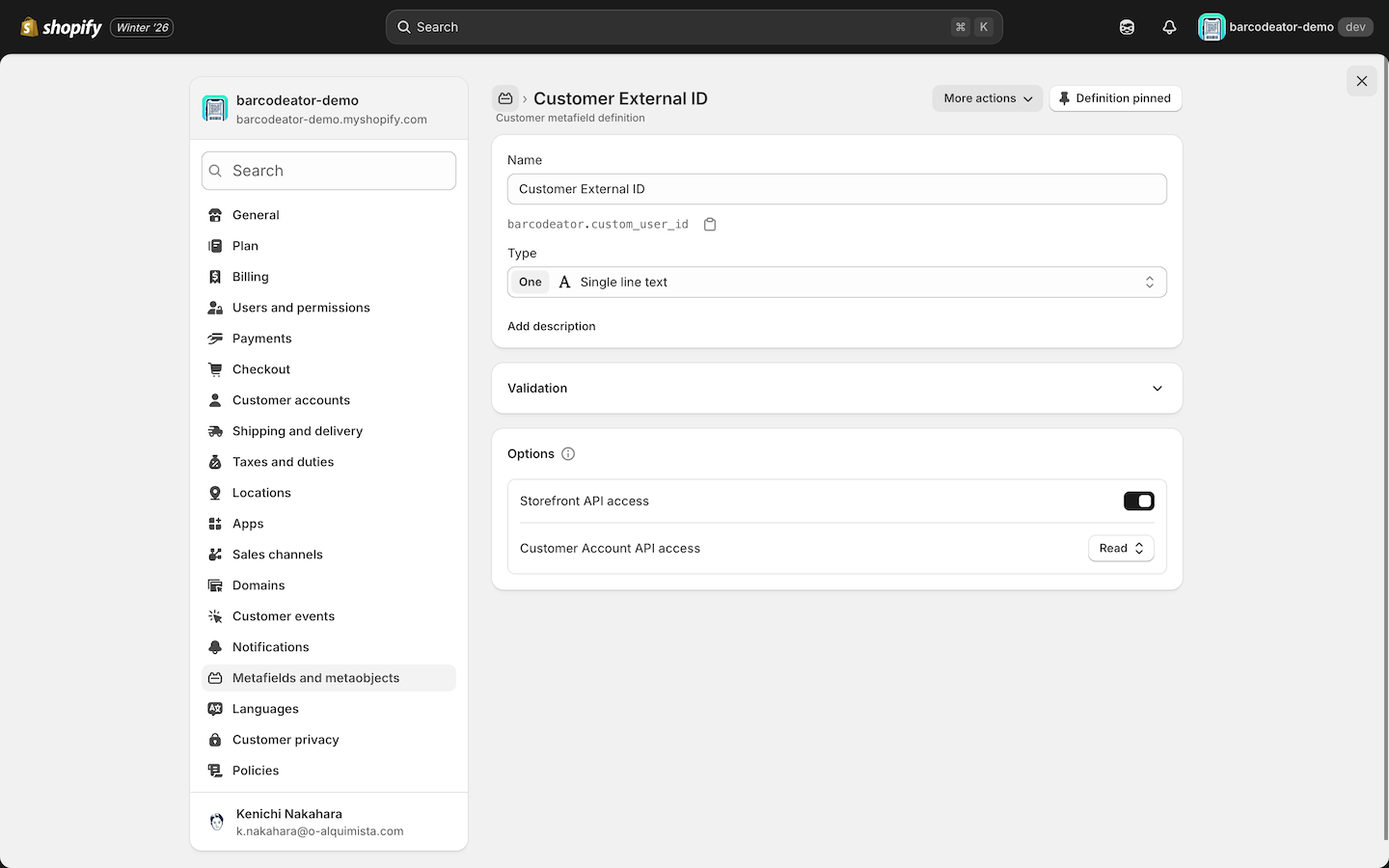
Settings > Metafields and metaobjects > Customers > Add definition
and create the metafield you want to reference.
You may choose any name, but we recommend a clear and meaningful one.
Barcodeator references the metafield using its namespace and key, so choosing an easily identifiable name is helpful.
For the Type, select Single line text with One value.
In the options, set Customer Account API access to Read.
Configure settings in the Barcodeator app
Open
Apps > Barcodeator - Customer QR Code > Basic settings.
By default, the data used for the barcode is the Customer ID.
Change the source to Metafield, and in Metafield (namespace.key), enter the namespace and key of the metafield created in the previous step.
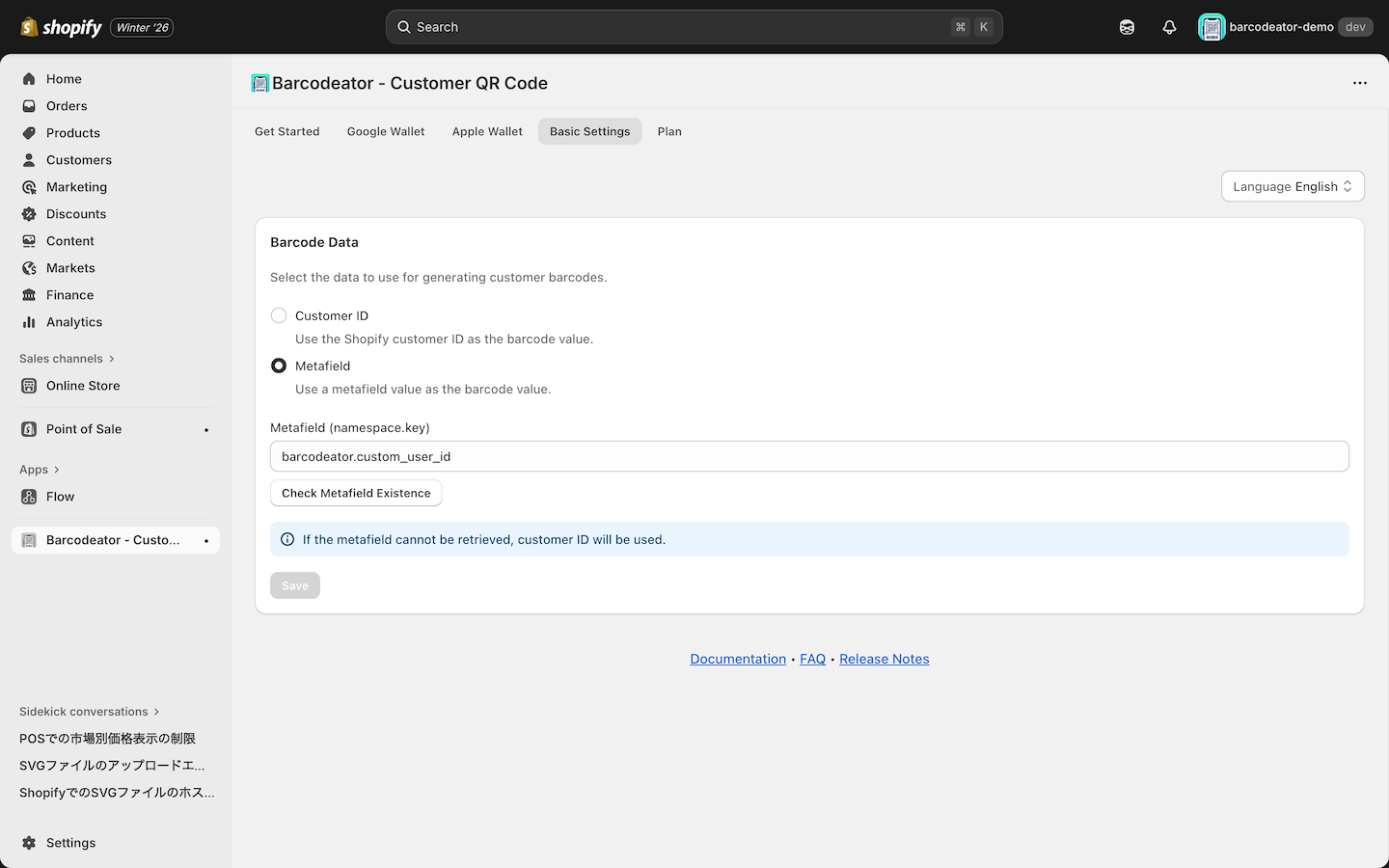
Click Check Metafield Existence.
If the namespace and key are valid, a confirmation message like the one shown below will appear.
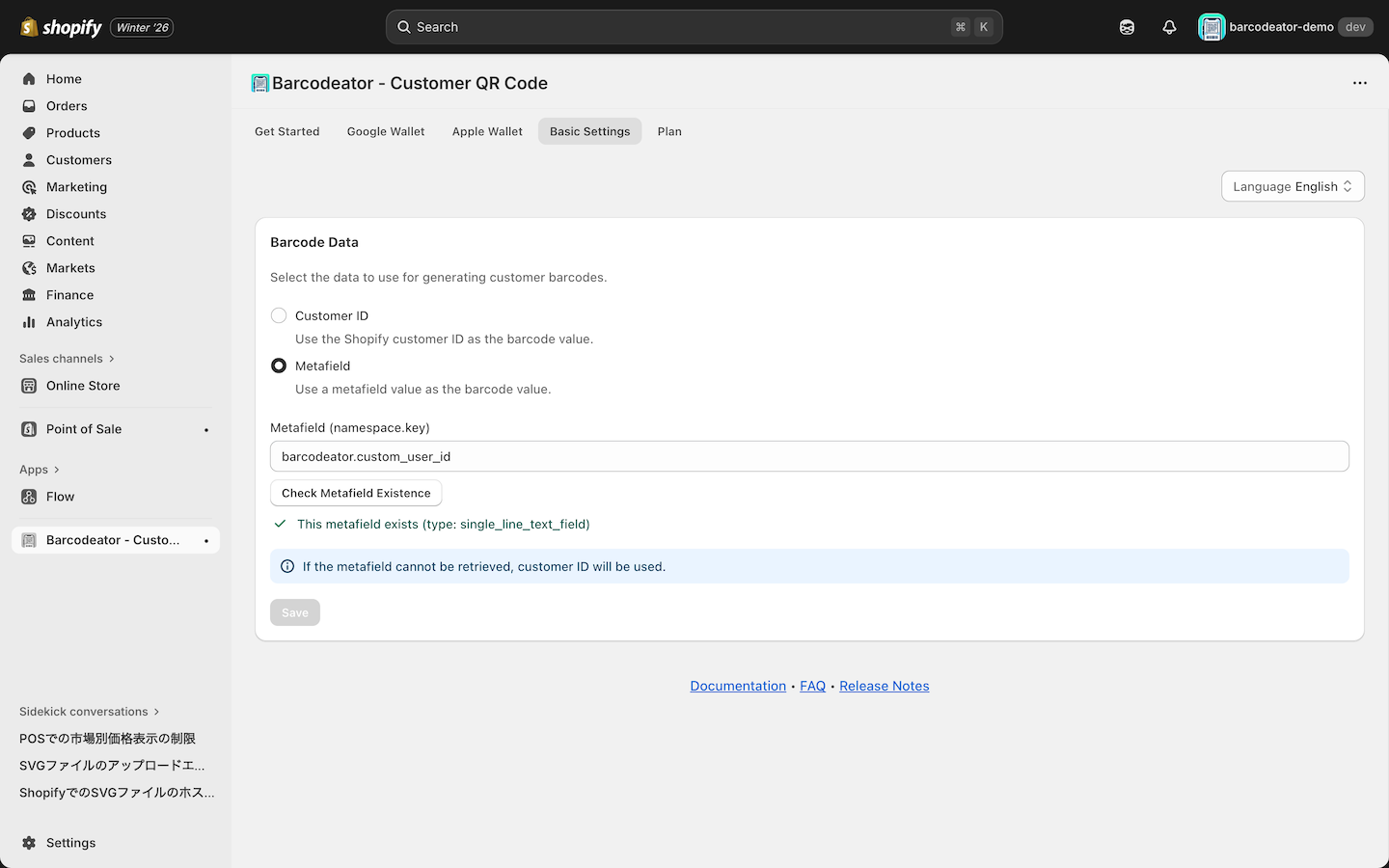
Once the metafield has been successfully verified, click Save to apply the settings.
If the namespace or key is incorrect, or if the metafield definition does not exist, a message like the one below will be displayed.
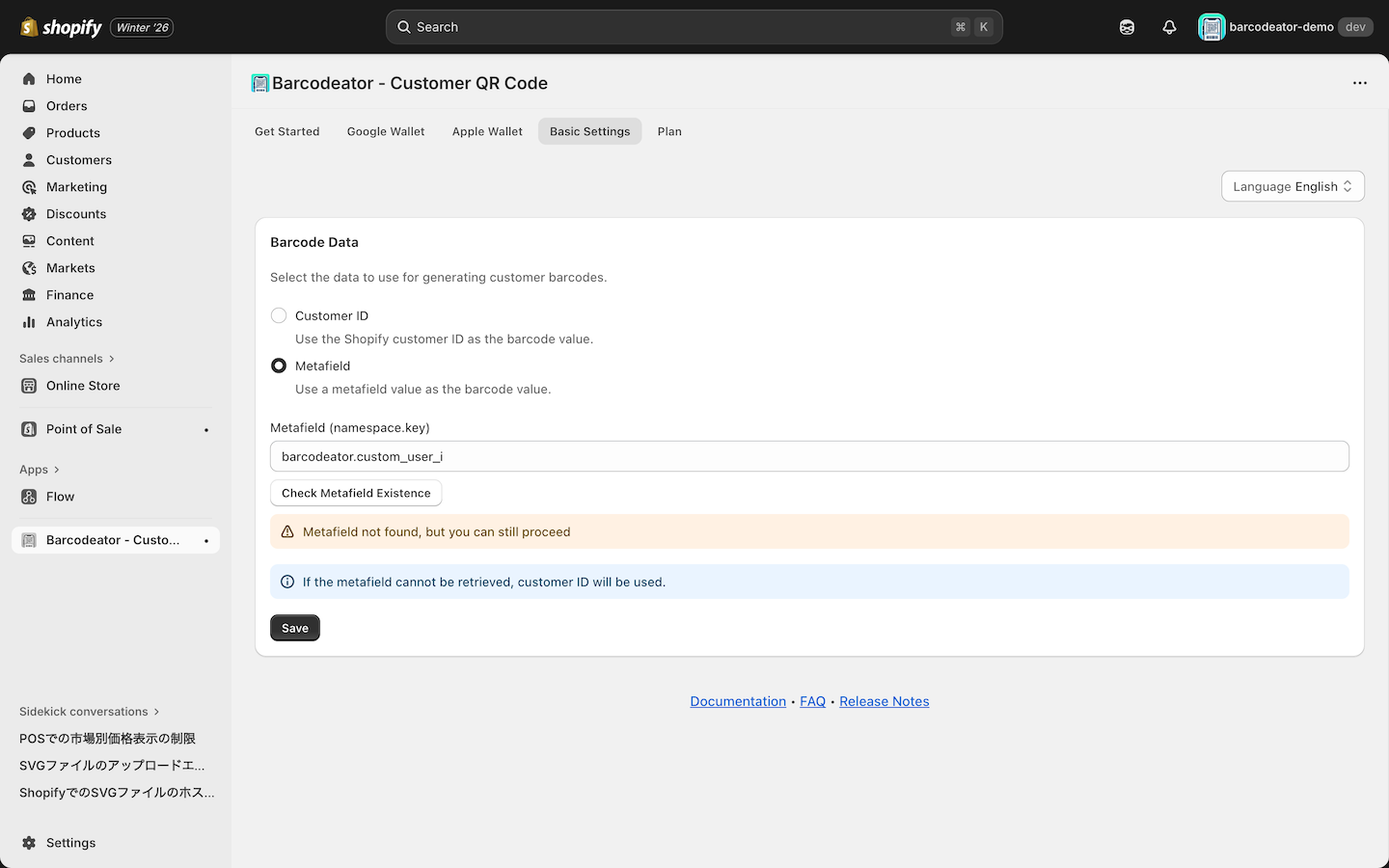
⚠️ If the specified metafield has no value, the Customer ID will be used instead and converted into a barcode / QR code.
⚠️ In the Shopify POS “Scan customer QR / barcode” action, only the Customer ID can be used in lookup.